


Some links in this post are affiliate links. If you use them, I may earn a small commission at no extra cost to you.
USB-C was supposed to make life easier. And in many ways it has. But the pain comes in when trying to connect old devices to new computers. I see people get stuck here all the time, wondering which plug or cable they need. This guide will help you identify your connections and choose the right cable, adapter, or hub for the job.
Quick Picks
These three options will get most devices connected. But keep scrolling to see the full list of how to connect just about anything to a newer computer with USB-C.
The Anker 60W charging cable has been my go-to for a while. I also own the SD/microSD reader and Plugable Ethernet adapter listed below. I haven’t personally tested the other picks; they are based on manufacturer specifications and product research.
Anker USB-C to USB-C cable, 60W (2-pack)Anker USB-C to USB-C cable, 240W
My go-to cable for everyday charging and basic syncing, up to 60W. Great for low to medium power devices like iPhone, iPad, MacBook Air, and MacBook Neo.
For charging above 60W, such as a MacBook Pro with a suitable USB-C power adapter. Basic syncing only; not for video or high-speed data.
Anker Prime Thunderbolt 5 cable
For video, docks, and Thunderbolt or USB4 drives. For an ordinary USB drive, see the 10Gbps option in the finder below.
Anker USB-C to USB-A adapter
Connect an older USB-A device or its existing cable to a USB-C computer, without figuring out which replacement cable to buy.
Should I replace the cable, use an adapter, or use a hub?
- Replace the cable when it detaches from the device and you can identify both plugs. One cable means fewer connections that can come loose. My picks use Anker for charging and Cable Matters for less common connectors.
- Use an adapter when you want to keep a working cable or it is permanently attached. The Anker adapter above accepts an older USB-A plug and connects it to your computer’s USB-C port.
- Use a hub when you need several connections at once, such as a keyboard, monitor, and memory card.
Find the cable that matches your connection
| Connector image | Connector name | Common devices or uses | Look-alike or compatibility warning |
|---|---|---|---|
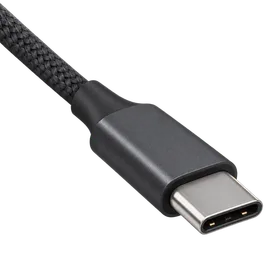 | USB-C | iPhone, iPad, MacBook, and battery packs | Two cables can have identical USB-C plugs while one only charges and the other carries power, video, and very fast data. |
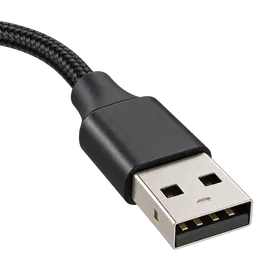 | USB-A | Charging a phone from an older hotel, airplane, car, battery-pack, or wall-charger port | A USB-A to USB-C cable and a USB-C to USB-A adapter solve opposite problems. Check which end of the connection needs to be a plug and which needs to be a socket. |
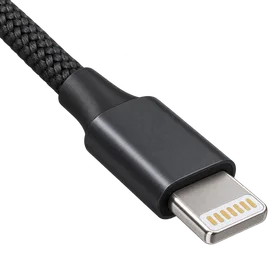 | Lightning | Older iPhone, iPad, AirPods, and accessories | For Lightning devices only. Current iPhones and iPads use USB-C. |
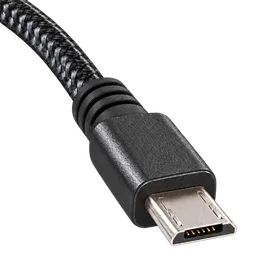 | Micro-USB 2.0 | Older Kindle, speaker, game controller, camera, or battery pack | Also fits the USB 2.0 section of a wider Micro-B 3.0 port, at USB 2.0 speeds. |
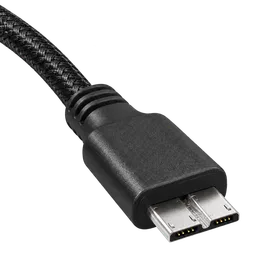 | Micro-B 3.0 | Older portable hard drives | The wide Micro-B 3.0 plug does not fit Micro-USB 2.0. |
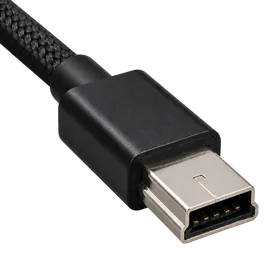 | Mini-USB | Older camera, GPS, microphone, calculator, or PS3 controller | Mini-USB is thicker than Micro-USB and does not fit a Micro-USB port. |
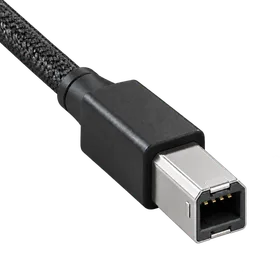 | USB-B 2.0 | Printer, scanner, MIDI keyboard, or audio device | Also fits a USB-B 3.0 port, at USB 2.0 speeds. |
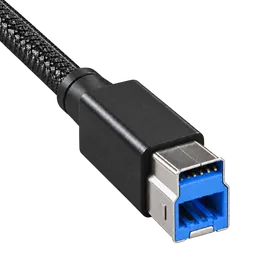 | USB-B 3.0 | Some scanners, docks, monitors, switches, and desktop drives | It does not fit the squarer USB-B 2.0 port. |
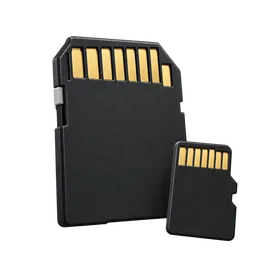 | SD / microSD | Memory cards from cameras, dashcams, and other devices | SD and microSD are different sizes. The recommended USB-C reader has a slot for each. CompactFlash and CFexpress need different readers. |
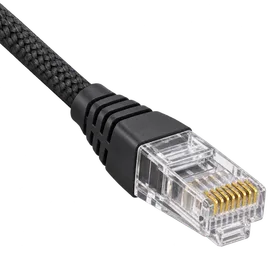 | Ethernet (RJ45) | Wired networking through a router, switch, or wall jack | This is the Ethernet cable's plug. The USB-C adapter accepts it in an RJ45 socket. It is wider than a telephone plug. |
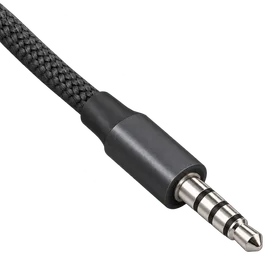 | 3.5mm headphones | Wired headphones, headsets, and speakers | This is the headphone plug. A USB-C to 3.5mm adapter has a socket that accepts it. Larger 6.35mm audio plugs need a different adapter. |
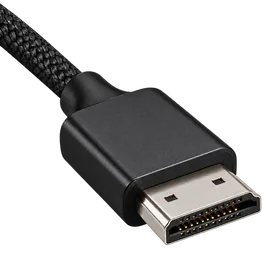 | HDMI | TV, projector, or monitor with HDMI | USB-C computer to HDMI display only. The USB-C port must support video. |
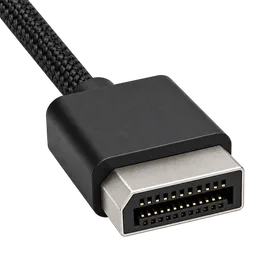 | DisplayPort | Monitor with a full-size DisplayPort input | USB-C computer to DisplayPort display only. The USB-C port must support video. |
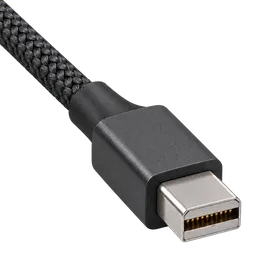 | Mini DisplayPort | Older monitor with a Mini DisplayPort input | USB-C computer to Mini DisplayPort monitor only. Cable Matters says it does not support Apple Cinema or Thunderbolt displays. |
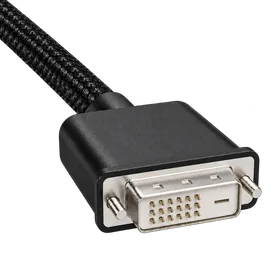 | DVI-D | Older digital monitor or projector | Single-link DVI-D only. The USB-C port must support video. |
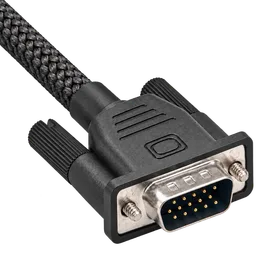 | VGA | Older analog monitor or projector | VGA is analog and dates to the 1980s. If your monitor has a digital input such as HDMI, DisplayPort, or DVI, use that instead to avoid analog signal degradation that can affect color and clarity. The USB-C port must support video. |
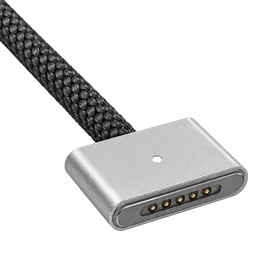 | MagSafe 3 | Charging a compatible MacBook through its magnetic port | Proprietary to compatible MacBook models and used for charging only. Not to be confused with MagSafe for iPhone. |
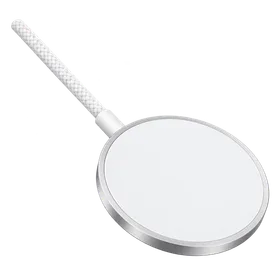 | MagSafe (iPhone) | Wireless charging for compatible iPhones, AirPods with a wireless charging case, and Qi2-certified devices from other manufacturers | A flat wireless charging puck for iPhone, not the Apple Watch charger or the MacBook's MagSafe 3 connector. Charging speed depends on the device and USB-C power adapter. |
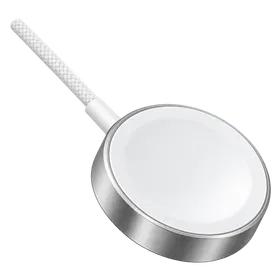 | Apple Watch | Charging an Apple Watch from a USB-C power adapter | Charging only. For fast charging, use a supported Apple Watch and a 20W or higher USB-C PD power adapter. |
Match your device’s port to the plug shapes in the pictures above. Then choose that connector in the finder. Choose Show all to browse every option. The matching cards explain what each cable supports and any compatibility limits.
Charging and versatile USB connections
USB-C to USB-C for everyday charging and syncing
Best for: Everyday charging up to 60W and basic syncing. Works great with iPhone, iPad, MacBook Air, and MacBook Neo.
Watch for: Choose the 240W option below when charging above 60W, such as with a MacBook Pro. Use a full-featured cable for video or high-speed data.
- Maximum power
- 60W
- Maximum data speed
- 480 Mbps
- Video / audio
USB-C to USB-C for charging above 60W
Best for: Charging above 60W, such as a MacBook Pro with a suitable USB-C power adapter
Watch for: Rated up to 240W; actual charging depends on the computer and power adapter. Not for video or fast file transfers.
- Maximum power
- 240W
- Maximum data speed
- 480 Mbps
- Video / audio
USB-C to USB-C for external drives
Best for: Replacing the cable for a USB-C portable SSD or hard drive that uses USB at up to 10 Gbps
Watch for: A 1-meter cable for everyday USB drives. Choose a cable rated for the drive's connection if you need 20 Gbps, USB4, or Thunderbolt speeds.
Device check: iPhone 16e, iPhone 17e, and iPhone Air do not support wired video output. Check your device's video support before buying.
- Maximum power
- 100W
- Maximum data speed
- 10 Gbps
- Video / audio
- Up to 4K at 60Hz with audio
USB-C to USB-C for Thunderbolt and USB4
Best for: USB-C monitors, docks, and Thunderbolt or USB4 external drives
Watch for: More expensive than a basic charging cable. Your devices determine the performance you actually get.
Device check: iPhone 16e, iPhone 17e, and iPhone Air do not support wired video output. Check your device's video support before buying.
- Maximum power
- 240W
- Maximum data speed
- 80 Gbps
- Video / audio
USB-C to Lightning
Best for: Older iPhone, iPad, AirPods, and accessories
Watch for: For Lightning devices only. Charging speed depends on the device and charger. Newer iPhones and iPads use USB-C.
- Maximum power
- Device-dependent
- Maximum data speed
- Not stated
- Video / audio
USB-A socket to USB-C device
Best for: Charging a phone from an older hotel, airplane, car, battery-pack, or wall-charger port
Watch for: Older USB-A sockets charge more slowly; iPhone 15 and later top out at 7.5W. That may be a problem if you are in a hurry to charge, but it's fine overnight.
- Maximum power
- Up to 15W
- Maximum data speed
- Up to 10 Gbps
- Video / audio
USB-A plug to USB-C socket adapter
Best for: Reusing a USB-C cable with an old USB-A source
Watch for: Using a passive adapter like this can let you accidentally connect two USB-A power sources together. Joining their power outputs may damage equipment. Use a direct USB-A to USB-C cable instead.
- Maximum power
- Not verified
- Maximum data speed
- Not verified
- Video / audio
USB-C plug to USB-A socket
Best for: A flash drive, keyboard, mouse, or another accessory that already has a USB-A plug
Watch for: Connects a USB-A accessory to a USB-C computer. It does not adapt a USB-A charging socket for a USB-C cable.
- Maximum power
- Accessory power only
- Maximum data speed
- Up to 5 Gbps
- Video / audio
Older USB devices
USB-C to Micro-USB 2.0
Best for: Older Kindle, speaker, game controller, camera, or battery pack. Micro-USB was a very common charging connection for non-Apple products for many years.
Watch for: Also fits the USB 2.0 section of a wider Micro-B 3.0 port, at USB 2.0 speeds.
- Maximum power
- Up to 15W
- Maximum data speed
- Up to 480 Mbps
- Video / audio
USB-C to Micro-B 3.0
Best for: Older portable hard drives
Watch for: The wide Micro-B 3.0 plug does not fit Micro-USB 2.0.
- Maximum power
- Device-dependent
- Maximum data speed
- Up to 10 Gbps
- Video / audio
USB-C to Mini-USB
Best for: Older camera, GPS, microphone, calculator, or PS3 controller
Watch for: Mini-USB is thicker than Micro-USB and does not fit a Micro-USB port.
- Maximum power
- Up to 15W
- Maximum data speed
- Up to 480 Mbps
- Video / audio
USB-C to USB-B 2.0
Best for: Printer, scanner, MIDI keyboard, or audio device
Watch for: Also fits a USB-B 3.0 port, at USB 2.0 speeds.
- Maximum power
- Not for charging
- Maximum data speed
- Up to 480 Mbps
- Video / audio
USB-C to USB-B 3.0
Best for: Some scanners, docks, monitors, switches, and desktop drives
Watch for: It does not fit the squarer USB-B 2.0 port.
- Maximum power
- Not specified by Cable Matters
- Maximum data speed
- Up to 5 Gbps
- Video / audio
Memory cards and wired networking
USB-C to SD and microSD card reader
Best for: Reading memory cards from a camera, dashcam, or other device. I own this reader.
Watch for: Has separate SD and microSD slots. The 5 Gbps rating describes the USB connection; actual transfers depend on the card, reader, and computer. It does not read CompactFlash or CFexpress cards.
- Maximum power
- Maximum data speed
- Up to 5 Gbps USB; card-dependent
- Video / audio
USB-C to Ethernet
Best for: Connecting a Mac to a wired network or router. I own this adapter.
Watch for: Connect your Ethernet cable to the adapter's RJ45 socket. Actual speed depends on the computer, network equipment, and internet service. Its hybrid plug also supports USB-A.
Read my Ethernet adapter guide for more information and faster network options.
- Maximum power
- Not for charging
- Maximum data speed
- Up to 2.5 Gbps Ethernet
- Video / audio
Headphones and speakers
USB-C to 3.5mm headphone jack
Best for: Wired headphones or speakers with a standard 3.5mm plug
Watch for: For compatible USB-C iPhones, iPads, and Macs. Plug your headphones into the adapter's 3.5mm socket. It has no charging port and does not fit Lightning devices. Depending on the device, you may be able to charge using MagSafe.
- Maximum power
- Maximum data speed
- No USB data
- Video / audio
- Audio only
Displays and Apple charging
USB-C to HDMI
Best for: TV, projector, or monitor with HDMI
Watch for: USB-C computer to HDMI display only. The USB-C port must support video.
Device check: iPhone 16e, iPhone 17e, and iPhone Air do not support wired video output. Check your device's video support before buying.
- Maximum power
- Maximum data speed
- No USB data
- Video / audio
- Up to 4K at 60Hz with audio
USB-C to DisplayPort
Best for: Monitor with a full-size DisplayPort input
Watch for: USB-C computer to DisplayPort display only. Maximum resolution requires compatible DisplayPort 1.4 equipment and display compression (DSC). The USB-C port must support video.
Device check: iPhone 16e, iPhone 17e, and iPhone Air do not support wired video output. Check your device's video support before buying.
- Maximum power
- Maximum data speed
- No USB data
- Video / audio
- Up to 8K at 60Hz with audio
USB-C to Mini DisplayPort
Best for: Older monitor with a Mini DisplayPort input
Watch for: USB-C computer to Mini DisplayPort monitor only. Cable Matters says it does not support Apple Cinema or Thunderbolt displays. A Thunderbolt Display uses a similar-looking plug but needs a different connection.
Device check: iPhone 16e, iPhone 17e, and iPhone Air do not support wired video output. Check your device's video support before buying.
- Maximum power
- Maximum data speed
- No USB data
- Video / audio
- Up to 4K at 60Hz with audio
USB-C to DVI
Best for: Older digital monitor or projector
Watch for: Single-link DVI-D only, up to 1080p. Not for dual-link DVI displays that need higher resolutions. The USB-C port must support video.
Device check: iPhone 16e, iPhone 17e, and iPhone Air do not support wired video output. Check your device's video support before buying.
- Maximum power
- Maximum data speed
- No USB data
- Video / audio
- Up to 1080p, no audio
USB-C to VGA
Best for: Older analog monitor or projector
Watch for: VGA is analog and dates to the 1980s. If your monitor has a digital input such as HDMI, DisplayPort, or DVI, use that instead to avoid analog signal degradation that can affect color and clarity. The USB-C port must support video.
Device check: iPhone 16e, iPhone 17e, and iPhone Air do not support wired video output. Check your device's video support before buying.
- Maximum power
- Maximum data speed
- No USB data
- Video / audio
- Up to 1920 × 1200 at 60Hz, no audio
USB-C to MagSafe wireless charger
Best for: Wireless charging for a MagSafe-compatible iPhone, AirPods with a wireless charging case, or Qi2-certified devices from other manufacturers
Watch for: For up to 25W, use a compatible iPhone and a 30W or higher USB-C power adapter that supports 15V/2A. The power adapter is sold separately. Charging speed varies with the device and power adapter. This does not charge Apple Watch and is different from the MacBook's MagSafe 3 cable.
- Maximum power
- Up to 25W wireless
- Maximum data speed
- Video / audio
USB-C to Apple Watch magnetic charger
Best for: Charging an Apple Watch from a USB-C power adapter
Watch for: Charging only. For fast charging, use a supported Apple Watch and a 20W or higher USB-C PD power adapter. The adapter's wattage is not the watch's charging wattage.
- Maximum power
- Charging wattage not published by Apple
- Maximum data speed
- Video / audio
USB-C to MagSafe 3
Best for: Charging a compatible MacBook through its magnetic port
Watch for: Proprietary to compatible MacBook models and used for charging only. Not to be confused with MagSafe for iPhone.
- Maximum power
- Mac and adapter dependent
- Maximum data speed
- Video / audio
Before you buy
- Match the cable to the job. A charging cable may also handle basic syncing, but a monitor, dock, or fast drive needs a cable that supports video or high-speed data. The Quick Picks separate those choices; the finder also includes a 10Gbps cable for ordinary USB drives.
- Check the specifications. Many cables have no clear power or speed markings, so you may need to check the original product specifications to know what they support. A cable’s wattage is its maximum capacity; your device and charger determine the charging speed. Data speeds are maximums, too, and depend on the computer and connected device.
- Check your device, too. A USB-C port does not automatically support video. Read the compatibility note on your matching card, and choose a cable long enough to reach comfortably.
- For an older USB-A charging socket, use a direct USB-A to USB-C cable. Avoid passive adapters with a USB-A plug and USB-C socket. They can let you accidentally join two USB-A power outputs and damage equipment. The USB-C specification does not allow this adapter arrangement.
Further reading


If you have a drawer of unidentified cables or older equipment to connect to a new Mac, I can help you sort through the mess. I offer one-on-one tech tutoring in San Francisco and Washington DC, and remotely over Zoom. Book a session for help identifying the connections and choosing what you need.