


Requirements
- Both users must be running OS X Yosemite.
- Both users must be signed into iMessages in the Messages app, though Messages doesn't need to be explicitly loaded to receive a Screen Sharing request.
- A text conversation must have been started otherwise the needed button doesn't appear.
To start Screen Sharing
- The initiator opens the Messages app.
- Locate and open a conversation with the recipient or start a new one by sending them a message.
- Click the "details" button in the upper right corner.
- Tap the double-screen icon.
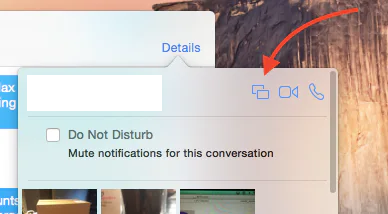
- Choose whether you want to see their screen or you want them to see yours.
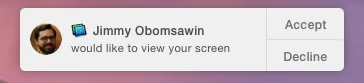
- The recipient will receive a request that pops up just like an iMessage notification in the top right of their screen which they can "Accept" or "Decline"


Notes
- Declining a screen share request will simply return a message to the initiator that you are unavailable.
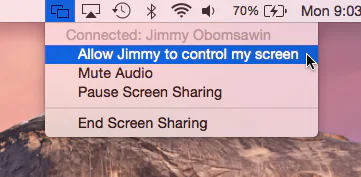
- Voice chat will be turned on immediately but can be turned off in the Screen Sharing menu (see the picture below of the menu).
- Screen Sharing will start in view mode. But the remote viewer can click and drag the screen, creating a highlighted circle on the local computer's screen.
- You can switch to remote control mode in the Screen Sharing menu.

Bonus tip - Screen Sharing on iOS, sort of
Even though this only technically works Mac-to-Mac, you can use my tip from last week on video recording your iOS screen to effectively screen share your iOS device. Follow the instructions above, and follow my instructions on recording your iOS screen, but you don't have to get as far as hitting the record button. The remote person can't control your iOS device but they can at least see your screen.