
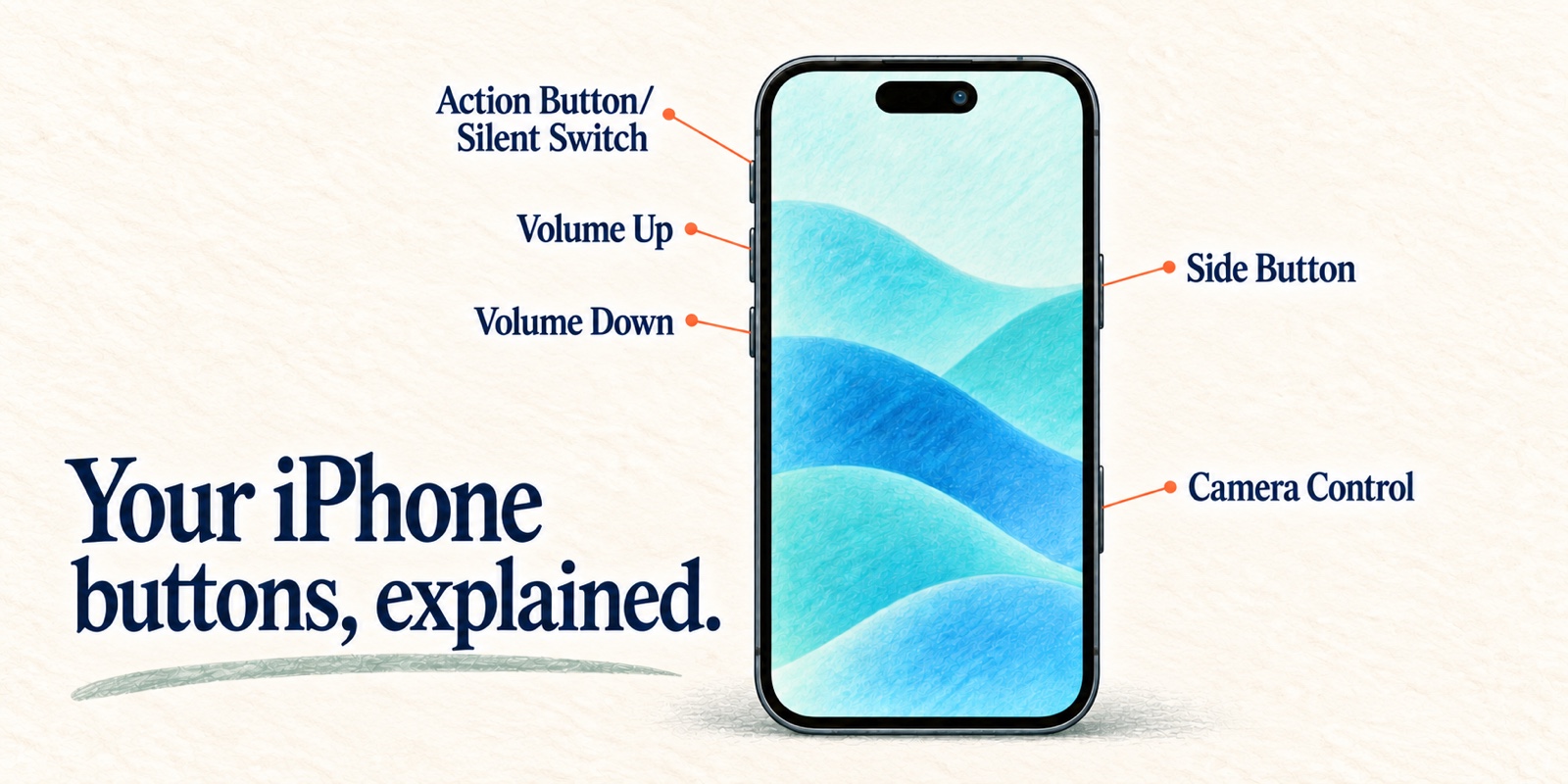

Have you been confused by what exactly the various buttons along the edge of an iPhone do? Here's your guide to taking a screenshot, adjusting volume, forcing a reboot of an unresponsive iPhone, and more!
Summary
- Click the Side button once to wake or lock your iPhone. Hold it for Siri, double-click for Wallet, or triple-click for your chosen accessibility features.
- The volume buttons adjust the sound that is relevant at that moment. They also work with the Side button for screenshots, shutdown, and Emergency SOS.
- Press and hold the Action button to use the function selected in Settings > Action Button. Older iPhones without a Home button have a Ring/Silent switch instead.
- On supported models, Camera Control can open Camera from the Lock Screen, take a photo, or open Visual Intelligence.
- For a force restart, quickly press Volume Up, quickly press Volume Down, then hold the Side button until the Apple logo appears.
This article covers iPhones without a Home button. If the swipes are what give you trouble, my companion guide explains how to navigate an iPhone using gestures, including how to go Home, switch apps, open notifications, and reach Control Center.
Side button
The Side button is the long button on the right edge of your iPhone. If you have two buttons on the right edge, it’s the upper one that sticks out a bit. One click wakes the screen when it is asleep or locks the phone when you are finished using it. The same button also handles several shortcuts.
Click once to turn the screen on or off

To avoid accidental calls and texts while your iPhone is in your pocket, click the Side button once to turn off the screen and lock your iPhone. This does not power the phone off. Calls, messages, alarms, and other notifications can still arrive. If you have an ‘always-on-display’ the screen will dim slightly and return to your lock screen instead of turning off completely.
Click the Side button again to wake the iPhone. Depending on your settings, you may also be able to wake it by tapping the screen or raising the iPhone.
Press and hold for Siri

Press and hold the Side button until Siri appears, then speak.
If you find that Siri stops listening before you are done speaking because you pause while you talk, you can hold the button and only release when you are done talking.
Double-click for Wallet

You do not need to wake or unlock your iPhone first. To pay with your default card:
- Double-click the Side button.
- Look at your iPhone to authenticate with Face ID, or enter your passcode if requested.
- Hold the top of your iPhone near the payment terminal until you see Done and a checkmark.
If you wish to pay with a different card, before touching your iPhone to the payment terminal tap the stack of cards on the bottom and choose a different one.
This assumes you have already added a payment card and have not turned off Double-Click Side Button in Settings > Wallet & Apple Pay > Apple Pay Defaults. The Face ID checkmark means that you have authenticated. The payment is not complete until the terminal and your iPhone confirm it.
Silence or decline an incoming call

When your iPhone is ringing, click the Side button once to silence it. The call is still coming in, so you can look at the screen and decide whether to answer.
If you want to decline the call, click the Side button a second time while it is still incoming. This normally sends the caller to voicemail.
Either volume button can also silence the ringing, but it does not decline the call.
Triple-click for Accessibility Shortcuts

Go to Settings > Accessibility > Accessibility Shortcut and choose the features you want available. Then triple-click the Side button whenever you want to use them.
If you select one accessibility feature, triple-clicking turns that feature on or off immediately. If you select more than one, triple-clicking opens a menu so you can choose which one to use. You can slow down the required click speed in Settings > Accessibility > Side Button if double-clicking or triple-clicking is uncomfortable.
Volume buttons

The Volume Up and Volume Down buttons are on the left edge. What they change depends on what your iPhone is doing:
- During a call or while music, a video, a game, or other audio is playing, they adjust that audio.
- At other times, they adjust the ringer and alert volume if Change with Buttons is turned on in Settings > Sounds & Haptics.
- While a call is ringing, either volume button silences it without declining it.
If a volume button seems to be changing the wrong thing, look at the symbol beside the on-screen volume bar. It shows whether you are adjusting media or the ringer.
Action button or Ring/Silent switch

The small control above the volume buttons depends on your iPhone model.
On an iPhone with an Action button, press and hold the button to use its assigned function. A quick click is not enough. Silent mode is the default, so holding the button once turns Silent mode on, and holding it again turns Silent mode off.
To choose a different function, go to Settings > Action Button and swipe to the action you want. The available choices depend on your model and software. The “Shortcuts” option also gives you a library of items from third party apps, such as the ability to talk to ChatGPT, start your Tesla, Listen with Shazam, open a QR code scanner, and more.
The Action button is on iPhone 15 Pro models, iPhone 16 and later models, and iPhone Air. The iPhone 16e and 17e have an Action button but no Camera Control.
The iPhone 15, iPhone 15 Plus, and earlier iPhones without a Home button have a Ring/Silent switch instead. Move it toward the back of the iPhone so orange is visible for Silent mode. Move it toward the front for Ring mode.
Silent mode stops most ringtones and alerts, but it does not silence everything. Clock alarms and media can still play, and some system sounds may play.
Camera Control
Camera Control is the recessed or flush control low on the right edge of supported models. It is on iPhone 16 and later models and iPhone Air, except for iPhone 16e and 17e.
I recommend keeping its everyday functions simple: use a full click to open Camera and take a photo, or hold it for Visual Intelligence. If the lighter presses and sliding controls get in your way, my complete Camera Control guide explains how to simplify or disable them.
Open Camera and take a photo

Camera Control is especially useful when you pull your iPhone out of your pocket and want a photo quickly:
- Click Camera Control to open Camera.
- Point your iPhone at what you want to photograph.
- Click Camera Control again to take the photo.
This works from the Lock Screen without unlocking your iPhone. To let one click open Camera while the display is asleep, go to Settings > Camera > Camera Control and turn off Require Screen On. Also make sure the control is set to Single Click and its launch action is Camera.
If Camera opens in Video mode instead of Photo mode, clicking starts a video recording. Check the selected camera mode before you press the button again.
Open Visual Intelligence

When you are outside the Camera app, press and hold Camera Control to open Visual Intelligence. Point the camera at what you want analyzed, then tap the action you want. Depending on what is in front of you, Visual Intelligence can identify an item, add an event to your calendar, call a phone number, run a Google Image Search, or send what you are looking at to ChatGPT for help.
Visual Intelligence requires a supported iPhone with Apple Intelligence turned on. Features and appearance vary by language, region, and software version. Its answers can also be wrong, so treat identifications such as a plant name as a suggestion rather than a certainty.
The iPhone 15 Pro models, iPhone 16e, and iPhone 17e support Visual Intelligence but do not have Camera Control. On those phones, you can assign Visual Intelligence to the Action button instead, or if you have upgraded to iOS 27 you will find a “Siri” mode within the Camera app.
Button combinations
Several important actions use the Side button together with one or both volume buttons.
Take a screenshot

Press and quickly release the Side button and Volume Up at the same time. The screenshot opens in a full-screen preview by default.
To save it, tap the checkmark, then tap Save to Photos. The same menu also offers other choices, including Save to Files and Copy and Delete. If your screenshots appear as small thumbnails instead, the Full-Screen Previews option has been turned off in Settings > General > Screen Capture.
If Siri appears, you held the Side button too long. If the volume changes but no screenshot is taken, try to press and release both buttons at exactly the same time.
Turn your iPhone off and back on

- Press and hold the Side button and either volume button together.
- Release both buttons as soon as the sliders appear.
- Drag the Power Off slider.
- Wait about 30 seconds for the iPhone to finish turning off.
- Press and hold the Side button until the Apple logo appears, then let go.
Release the buttons when the sliders first appear. Continuing to hold them begins the Emergency SOS sequence described below.
If the combination is uncomfortable, you can also go to Settings > General > Shut Down. Another option is to open Control Center, touch and hold its Power button, and use the Power Off slider.
Force restart a frozen iPhone

Use a force restart only when your iPhone is frozen or will not respond to the usual shutdown controls:
- Press and quickly release Volume Up.
- Press and quickly release Volume Down.
- Press and hold the Side button.
- Release the Side button when the Apple logo appears. This may take longer than ten seconds.
The first two presses are quick and separate. Do not hold the volume buttons, and do not press all three buttons at once.
Use Emergency SOS

Emergency SOS can call emergency services and notify your emergency contacts. Do not place a real emergency call to practice it. Review the options in Settings > Emergency SOS instead.
This is particularly useful if you don’t have cellular service or if you are in a different country, since this will activate Cellular SOS or dial the local number for emergency services.
With Call with Hold and Release turned on, the sequence in the United States and most other countries and regions is:
- Press and hold the Side button and either volume button together.
- Keep holding after the sliders appear and through the Emergency SOS countdown.
- Release both buttons when the countdown finishes to place the call.
The animation slows the sequence down for teaching and does not promise a particular countdown length. The shortcut works differently in India. Settings > Emergency SOS also includes a separate Call with 5 Presses option, but it is not the method shown here.
If you start the countdown accidentally, cancel it before the call is placed. If the call connects, do not hang up. Wait for a responder and explain that the call was accidental.
The button combinations become much easier once you practice the harmless ones a few times. Start with a screenshot and a normal shutdown, then review your Action button, Camera Control, and Emergency SOS settings so they behave the way you expect.
If you would like to practice these controls and iPhone gestures at your own pace, I offer one-on-one tech tutoring in San Francisco and Washington DC, or by Zoom from anywhere. You can book a session here.